
USBee
Decades of Mac innovation. Why am I still guessing when it’s safe to unplug a drive?
macOS utility · Designed and Developed by MeClosing the warning won’t undo the unplug.
Pull an external drive while your Mac is still writing and you could corrupt a file or lose changes that haven’t been backed up. By the time the warning appears, the cable is already out.
Why should you adapt to the Mac when it could show you what it already knows? Visibility of system status means seeing what’s mounted and when it’s safe to unplug, before you reach for the cable.
Shows up when you need it.
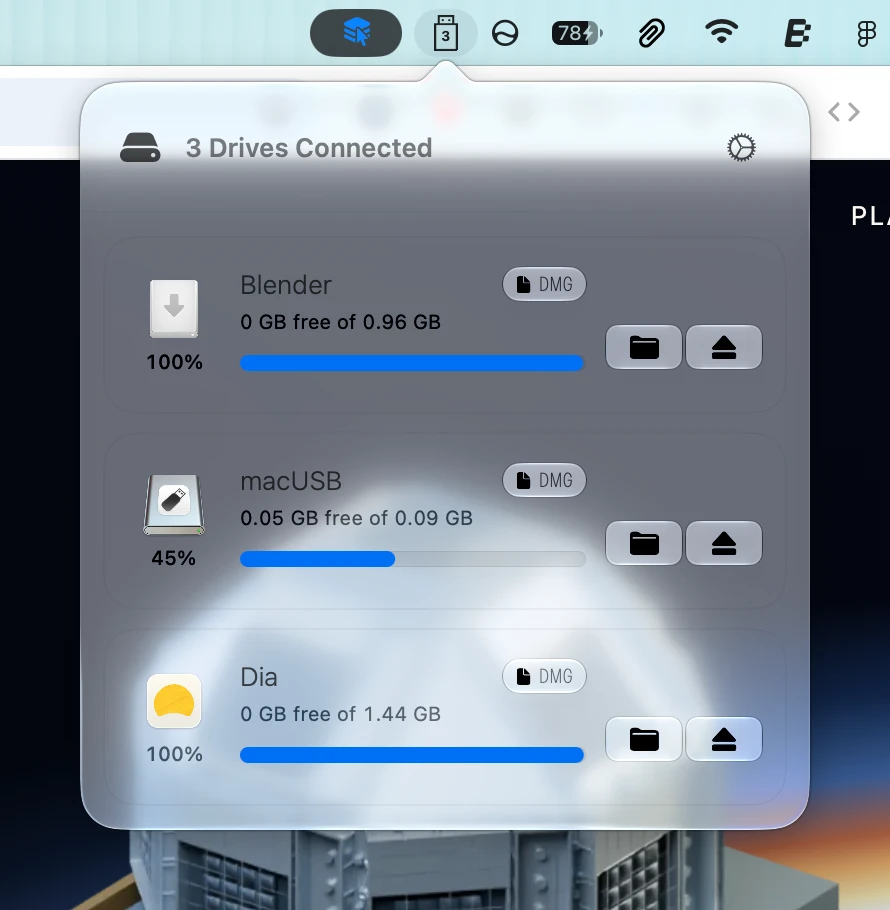
USBee puts drive status in the macOS menu bar. Its icon appears when an external drive or disk image mounts, shows how many volumes are mounted, and disappears after the last one is ejected.

Eject without switching apps.
Click USBee in the menu bar and choose Eject next to the volume you want to remove. You can do it from the window you’re already working in, without opening Finder.
Check the connection.
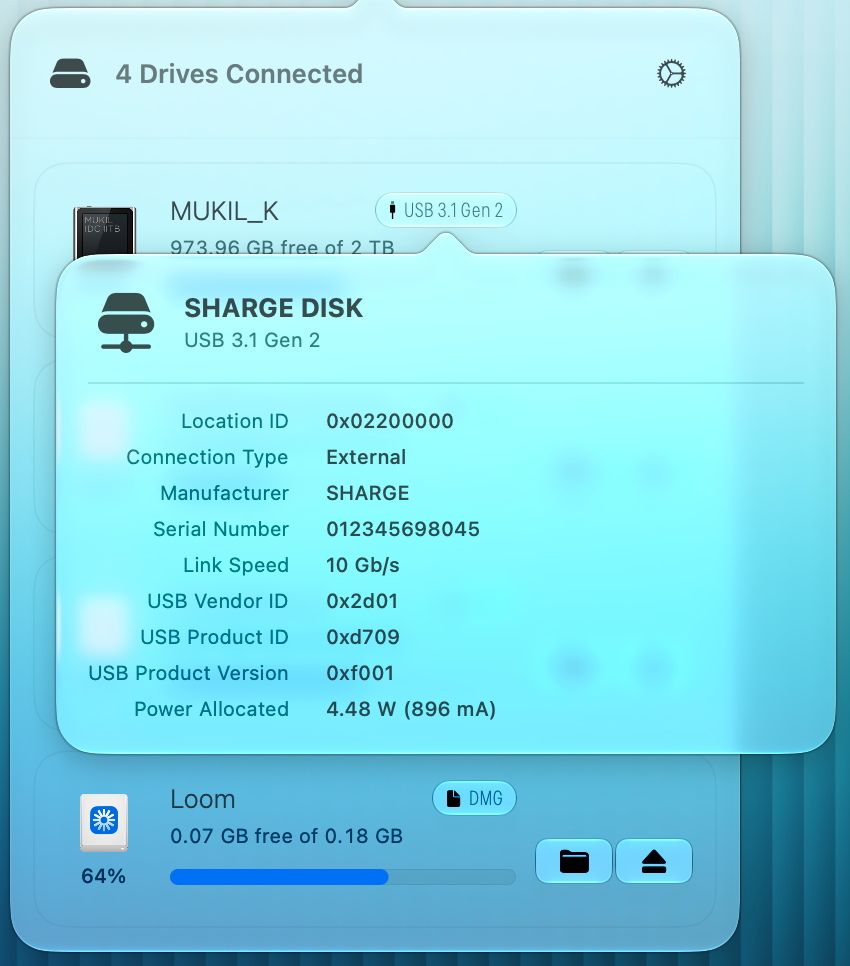
See how a drive is connected and open its details for more information, including the USB version, manufacturer, and power allocation.
Make it yours.
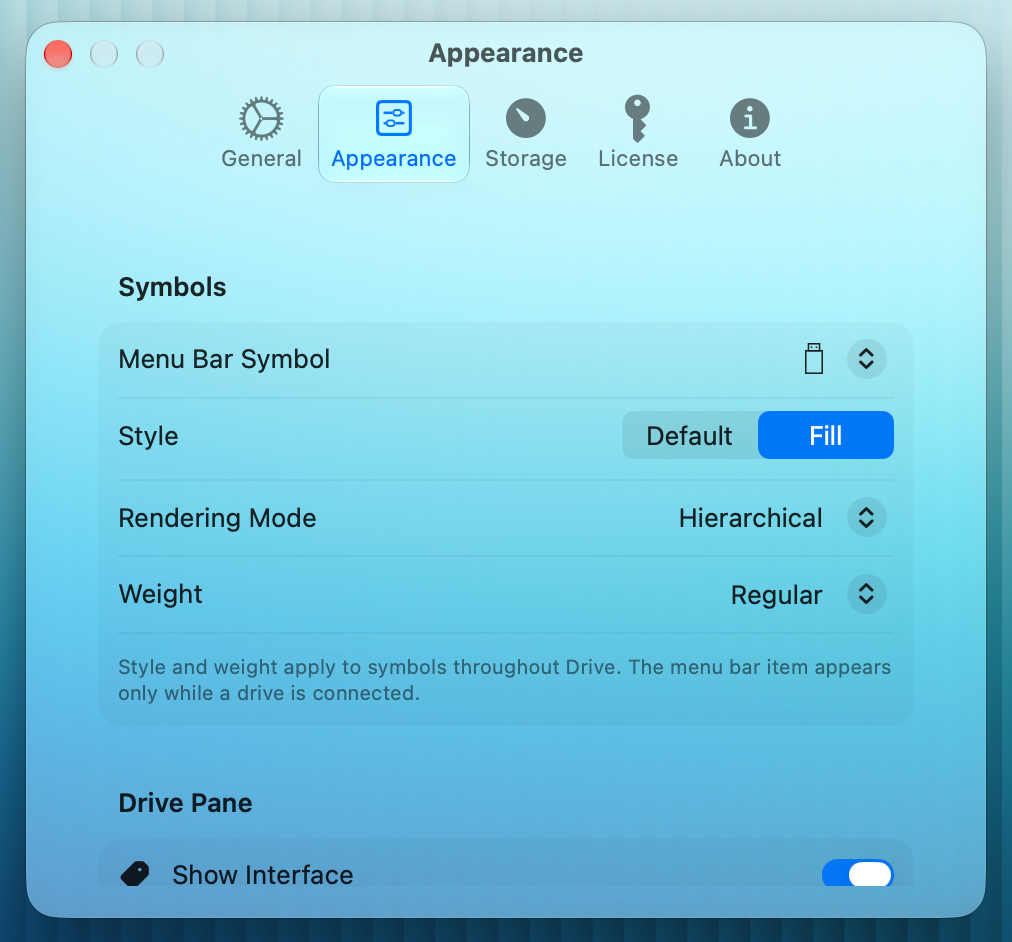
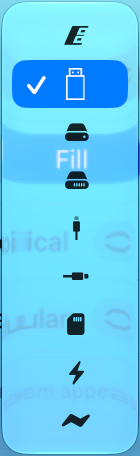
Choose a menu bar symbol and adjust its style, weight, and rendering. You can also choose whether connection labels appear in the drive list.
What would make external storage feel native?
USBee brings three everyday actions into the menu bar. See what’s mounted, check how it’s connected, and eject it when you’re done.
← Back to selected work